
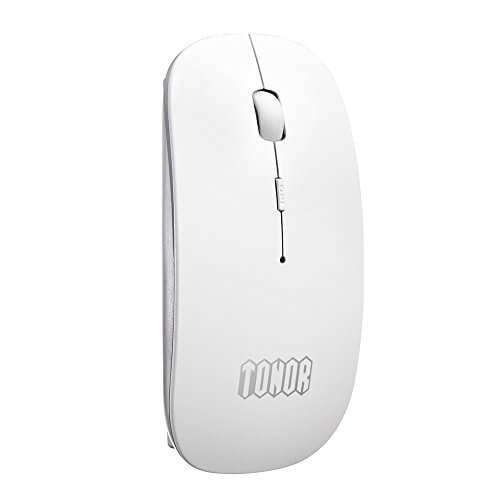
Description
Power Revolution
No need to buy batteries for your mouse anymore. It has a build-in rechargeable battery and charging socket in the front of mouse. On/off switch on the bottom helps to conserve power. After a full charge it can last a month at least.
Convenient to carry
Lightweight slim design makes it perfect for travel, easy to put in your laptop bag or pockets. Meanwhile, Bluetooth function eliminates the risk of leaving your mouse nonfunctional due to losing the separate USB receiver of wireless USB mice.
Compatibility
Effortlessly connect to any Bluetooth enabled devices. It is compatible with Win 7/8/Vista/Mac Android device and iPad (you need to jailbreak your iPad). Intelligent connectivity, no code required. 3.1 interface is backward compatible with all + * + * +
Controllability
3 DPI levels to suit both ordinary and gaming needs. Optical laser allows for quick response, precise movement and smooth tracking. Mute design using the advanced sensor to make your mouse silent. No more annoying click soun.
Specifications:
- Bluetooth Version: Bluetooth 3.0
- 3 DPI Levels: 800/1200/1600
- 800Mah rechargeable battery capacity
- Operating Range: Max.32.8FT
- Dimension: 4.332.360.79 inches
- Net Wight: 55g
- Buttons: Left/right click, scroll wheel, DPI button, on/off switch, Bluetooth connection button
What’s in The Box:
- 1 x Tonor Untra Slim Bluetooth Mouse
- 1 x User Manual
- 1 x USB cable
Installation Guide
Charge the mouse:
- 1.Turn off the power switch at bottom of the mouse.
- 2.Connect with USB cable for charging, charge for 1~2 hours.
- 3.Red light will turn on to indicates charging. After fully charge,light should turn to green.
Pair with the Bluetooth mouse:
- Turn on Bluetooth on your computer , search for external Bluetooth device, after your computer find the mouse and a mouse icon will pop up. Click the mouse icon for pairing.
- Please make sure that the Bluetooth function has been activated before paring. Double click the icon in the bottom right of your computer desktop or open control panel, open the “Bluetooth Management” window, click “Add” and check “facility is ready for searching”, click “Next”.


